Visual Studio Code is a lightweight editor released by Microsoft; by installing various plugins it can be turned into a powerful multi-language, cross-platform compiler. Recently, because of practical needs, I had to debug some C/C++ code, so I started tinkering with Vscode. Below is a record of the problems that troubled me during the process.
The system used in this post is ubuntu16.04LTS
I will not go into the details of installing Vscode on linux, as Baidu has plenty of resources on that.
Installing the C/C++ plugin
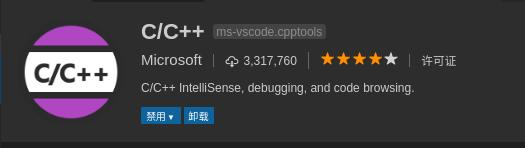
Use ctrl+shift+P to bring up the command line, search for C++, and find the plugin officially released by Microsoft, as shown:
Editing C/C++ source files
Open a directory with Vscode, because compiling C/C++ generates some configuration files that are specific to the files in the directory.
Now let’s write a simple cpp file and try it out:
// hello.cpp

# include<iostream>
using namespace std;

int main()
{
    cout << "Hello World!" << endl;
    return 0;
}
Compiling C/C++ source files
Save the cpp source file you have written; if you compile and run it directly, Vscode will report an error, because the relevant files have not been configured yet.
- Configuring the launch.json file
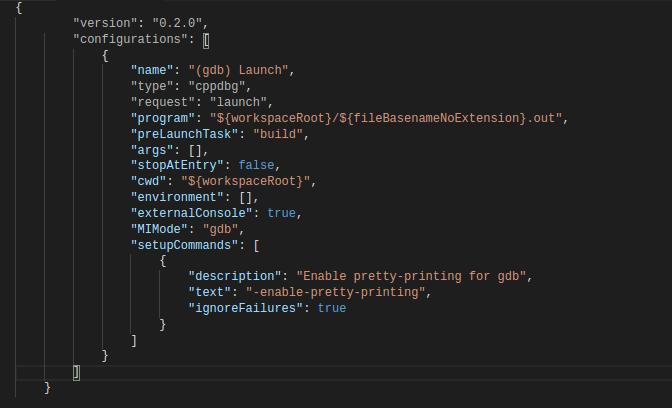
According to the error message, choose C/C++(GDB) to open the relevant launch.json file and change the code of the "program" section to:
"${workspaceRoot}/${fileBaseNoExtension}.out"
Some people may also need to change the "cwd" item to: "${workspaceRoot}"
After the change it looks like this:
- Configuring the tasks.json file
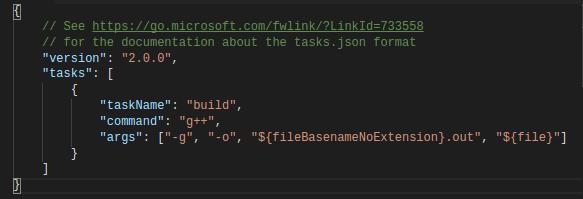
Even after configuring launch.json, compilation still will not run smoothly; the tasks.json file also needs to be configured.
Use ctrl+shift+P to open the command line, type tasks runner, select configure tasks and press enter to open it
Modify "taskName" and "command" under the "task" item and add an "args" item; the result is shown:
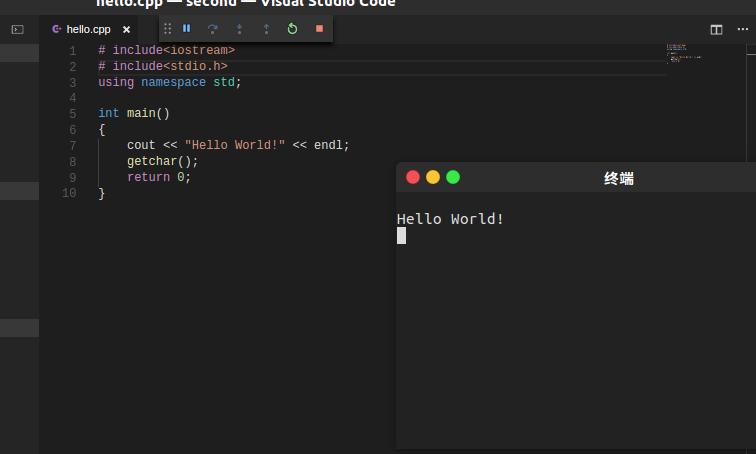
Once both files have been configured and saved, you can compile and run. Click debug and you will see the terminal flash by; under windows, so that we can clearly see the output in the terminal, we would add a statement to the cpp file: system(pasue), but in linux systems pasue is no longer a command, so it does not work. getchar() can be used instead to achieve the same effect.
# include<iostream>
# include<stdio.h>
using namespace std;

int main()
{
    cout << "Hello World!" << ehdl;
    getchar();
    return 0;
}
A screenshot of the result is attached: