Borrowing a line from the TensorFlow Chinese community: TensorFlow, an open-source magic tool for artificial intelligence.
Environment used for the configuration
- System: Ubuntu16.04 (LTS)
- python version: python3.6 (using Anaconda to create a virtual environment)
- Nvidia card: Geforce 920M (if there is no Nvidia card, only the CPU version can be installed)
Installing Tensorflow
tensorflow has two versions, CPU and GPU; I created two python virtual environments and installed these two versions separately. Below I record this painful installation process
tensorflow CPU
- Create a virtual environment
conda create -n tensorflow python=3.6
source activate tensorflow  #enter the virtual environment
- Install tensorflow Installing the CPU version is fairly simple — just use pip
pip install tensorflow
If the installation reports an error, you can choose to download and install it: Go to pypi and pick the appropriate version to download, then run the following command in the directory where the file is placed:
#the file name here is your own
pip install tensorflow-1.6.0rc0-cp36-cp36m-manylinux1_x86_64.whl
- Verify the installation
Enter the python environment and test:
$ python

>>> import tensorflow as tf
>>> hello = tf.constant('Hello TensorFlow!')
>>> sess = tf.Session()
>>> print(sess.run(hello))
Hello Tensorflow!
>>> a = tf.constant(12)
>>> b = tf.constant(23)
>>> print(sess.run(a+b))
35
>>>
Or import the tensorflow module and run sess = tf.Session(); the output is roughly as follows:

At this point the tensorflow CPU version is installed
tensorflow GPU
This will be a painful process with a high error rate; it took me two days to get this GPU version installed.
Creating the virtual environment
conda create -n tensorflow_gpu python=3.6
Before installing the tensorflow GPU version, CUDA and cuDNN must be installed. CUDA is a general parallel computing architecture introduced by NVIDIA, which enables GPUs to solve complex computing problems. It includes the CUDA instruction set architecture (ISA) and the parallel computing engine inside the GPU. cuDNN, on the other hand, is a GPU acceleration library for deep learning neural networks, emphasizing performance, ease of use and low memory overhead. NVIDIA cuDNN can be integrated into higher-level machine learning frameworks.
One piece of advice here:
You can download the CUDA documentation first, but do not rush to install; read the official guide provided by NVIDIA carefully, then find a few good blog posts to read, so as to have a rough understanding of the CUDA installation process and a general idea of the problems that may arise during installation.
Installation prerequisites
- Verify whether the computer has a CUDA-capable GPU:
Enter the command lspci | grep -i nvidia in the terminal and check the output. If there is no output, try update-pciids (this command is usually in the /sbin directory) to update the computer’s PCI hardware database, and then run the previous query command again. The final output should look like the figure below; if your GPU is from the Nvidia manufacturer and is in the CUDA list, it means you have a CUDA-capable GPU.

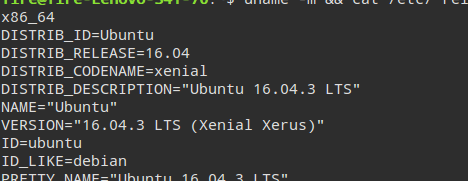
- Verify whether the Linux version supports CUDA:
Use the command uname -m && cat /etc/*release to check (ubuntu16.04 is supported)
- Verify whether gcc is installed on the system:
Enter the command gcc --version to check the gcc version; if it is not installed, install it following the terminal prompts.
- Verify whether the system has the matching kernel header and package development files:
The command uname -r shows the kernel version, and then you can run sudo apt-get install linux-headers-$(uname -r) to install it; if it is already installed, the terminal will say so and stop the installation.

Once all the items above are satisfied, you can start installing CUDA.
Installing CUDA
CUDA offers two installation methods: package manager installation and runfile installation. I saw on other blogs that most people choose the runfile method; I tried it several times too, but in the end it always failed, and of the two days of installation time, most was spent on installing CUDA. Finally I chose the package manager installation method.
- Download the CUDA package:
First select the CUDA version on the CUDA download page; I chose CUDA 9.0
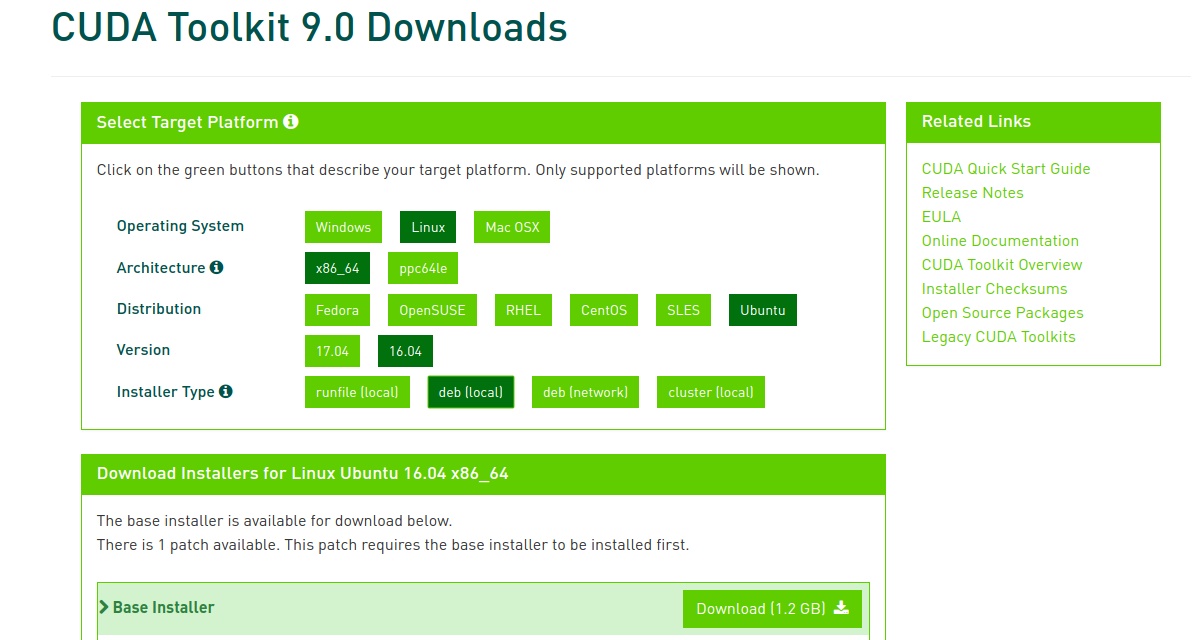
Then install following the installation steps indicated on the page
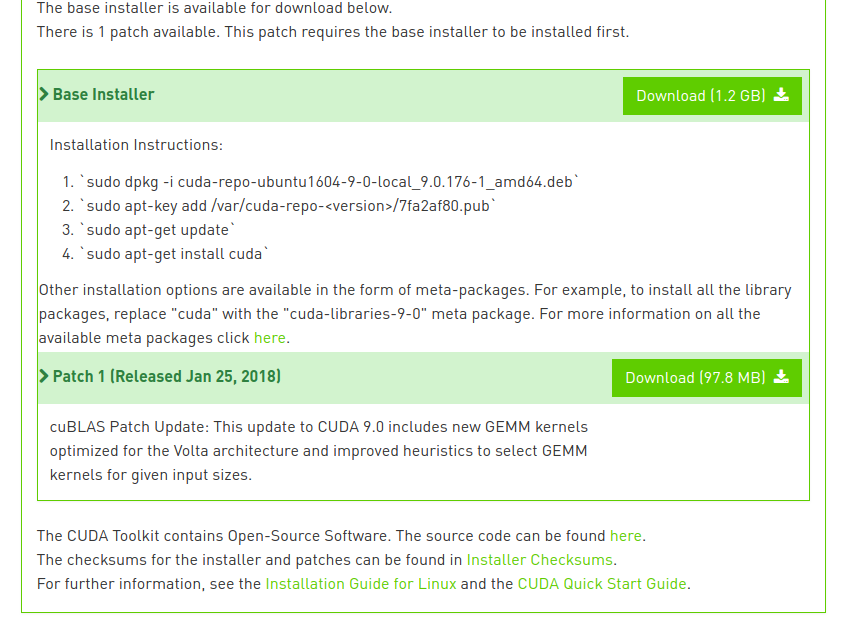
There is also a patch package for CUDA9.0 on the page; after installing CUDA9.0 it can be installed with the dpkg -i command
- Configuring CUDA:
After the steps above, the system environment variables still need to be configured: edit the .bashrc file in the home directory with superuser privileges, add the following content to the file, save and exit.
export PATH="/usr/local/cuda-9.0/bin${PATH:+:${PATH}}"
export LD_LIBRARY_PATH="/usr/local/cuda-9.0/lib64${LD_LIBRARY_PATH:+:${LD_LIBRARY_PATH}}"
Then reload the file with the command source ~/.bashrc.
Verifying the CUDA installation
- Check the CUDA version:
Enter nvcc --version in the terminal and check the output; if the output is the corresponding version number, you can go on to the next step, otherwise you should uninstall and reinstall
Uninstall commands:
sudo /usr/local/cuda-9.0/bin/uninstall_cuda_9.0.pl (by default the CUDA uninstall script is in the /usr/local/cuda-9.0/bin directory);
sudo /usr/bin/nvidia-uninstall uninstalls the nvidia driver and its configuration.
- Compile the examples provided by CUDA:
Generally the examples provided by CUDA are in the /usr/local/cuda-9.0/samples directory; they can be compiled there, or the whole directory can be copied elsewhere for compilation.
Run the command make under samples/ to compile; on success it displays Finished building CUDA samples

After compiling, enter the directory /samples/bin/x86_64/linux/release and run ./deviceQuery; the result is roughly as follows:

Then check the connection between the system and the CUDA-Capable device by running ./bandwidthTest; the output is roughly as follows:
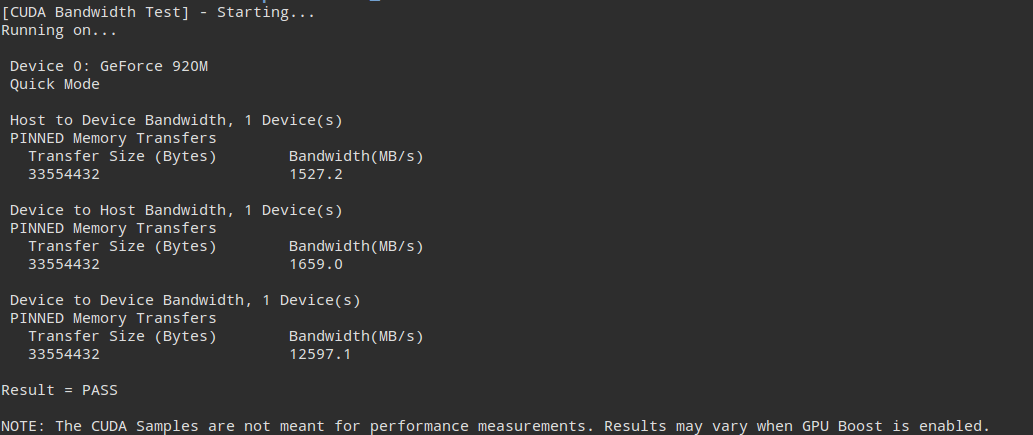
If all the items above pass, congratulations, CUDA has been installed successfully! Next is installing cuDNN
Installing cuDNN
First you need to register an account on the Nvidia official site to download the cuDNN package, then choose the corresponding package to download (make sure it matches the installed CUDA version)
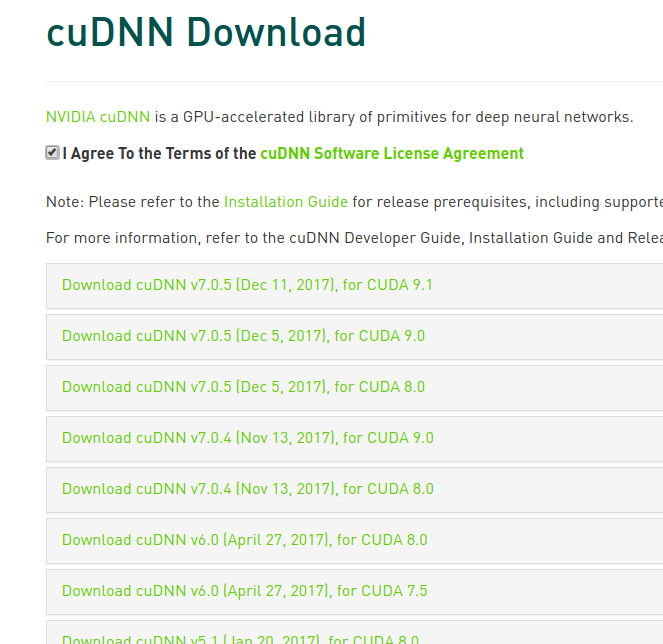
After downloading, extract it with the tar command, and then copy the corresponding files into the corresponding CUDA directories
sudo cp cuda/include/cudnn.h /usr/local/cuda-9.0/include/
sudo cp cuda/lib64/libcudnn* /usr/local/cuda-9.0/lib64/
sudo chmod a+r /usr/local/cuda-9.0/include/cudnn.h
sudo chmod a+r /usr/local/cuda-9.0/lib64/libcudnn*
Installing tensorflow GPU
Enter the virtual environment: source activate tensorflow_gpu
You can go to pypi to choose the corresponding version to download and then install it with pip install.
You can also install it directly with the corresponding package link
$ pip install https://pypi.python.org/pypi/tensorflow-gpu/tensorflow_gpu-1.6.0rc0-cp36-cp36m-manylinux1_x86_64.whl
Verifying the installation
Import the tensorflow module in python inside the virtual environment and run sess = tf.Session(); the output is roughly as follows:

OK, the long installation of the tensorflow GPU version is over; now you can put those amazing artificial intelligence algorithms into practice!
Reference
QLULIBIN — a detailed tutorial on installing CUDA 9.0 on Ubuntu 16.04
multiangle — the process of installing CUDA, cuDNN and the tensorflow-gpu version under ubuntu16.04
Some pitfalls that may be encountered during installation and how to solve them:
ycszen — installing the NVIDIA driver on Ubuntu (a solution after consulting an NVIDIA engineer)
Some further reading:
ZeroZone — an overview of the Compute Capability of NVIDIA GPUs
superPershing — switching between Intel and NVIDIA graphics cards on Ubuntu